
Onboarding Check List
Third Party Email Set Up using SMTP
(Not Gmail or Google Workspace)
Updated: Dec 10, 2022
Estimated time to complete: 10 mins
Below are a list of basic steps you will need to go through to get your new Popmix CRM account up and running.
Most of the steps are better completed by the user before they schedule an onboarding call because they require a user name and password, admin access to external software or are easy enough anyone can do them.
NOTE: The biggest obstacle we have in setting up new CRM accounts is that users do not remember their user names and passwords to other software like Gmail, GoDaddy, Facebook etc. Please have ALL your user names and passwords ready, you will need them often during this set up process.
Primary Objectives:
1) Configure your Email so you can send and receive emails via the CRM.
Secondary Objectives:
1) Test sending and receiving emails
Basic Email Set Up using an SMTP provider
NOTE: You do not need to set up Basic if you plan to use Bulk Email. The CRM does not allow both. If you plan to bulk email (more than 50 emails per day) then skip this sections and go directly to the Bulk Emailing with Mailgun section.
Free Email Provider SMTP Configurations
Modified on Sat Oct 1, 2022 at 2:31 PM
Free email service providers are not the best choice for sending bulk email. Bulk email is defined as more than 50 emails per day* from any single user on the platform*. in fact, AOL, Gmail, Bellsouth, Yahoo and Hotmail’s outgoing servers are specifically not designed for bulk emailing and will block, severely limit or restrict accounts if they detect bulk emails is taking place. Most free email service providers have a clause in their terms of service similar to: “Sending large volumes of unsolicited e-mail to or from a single user, or group of users, commercial or otherwise, by Service users is prohibited.” No exact limit of outgoing emails is set; however, it’s not recommendable to use it for mass emailing (even if it’s legal).Instead, the best solution is to opt for a Mailgun a professional bulk outbound email service.
*Every provider has different limits but 50-100 is where most free providers draw the line."
Step 1: Identify your SMTP (Email) provider from the List below. (if your provider is not listed below search their website for SMTP settings or SMTP Configuration.)
Step 2: Log in to the CRM and go to Settings | Email Services | Add Service Button
Step 3: Select Provider from the list or select Other
Step 4: Enter the configuration details
Step 5: Change default provider to your SMTP Provider and click the circle on right side.
Step 6: Test sending and receiving email.
NOTE: Do NOT use Yahoo Mail. Yahoo no longer supports integrations with 3rd party CRM's like Popmix CRM.
Popular SMTP Providers
AOL SMTP configuration
• AOL SMTP server name: smtp.aol.com
• AOL SMTP username: your AOL address
• AOL SMTP password: your account password
• AOL SMTP port: 25 or 465
AMAZON SMTP configuration:
• Use the correct server name listed on the SMTP Settings page
• Use port 465
• Use the IAM Username & Password you created ( and hopefully saved because you can't view it again )
• Use the Amazon AWS Root User Email Address
Amazon SES Quick Starthttps://docs.aws.amazon.com/ses/latest/DeveloperGuide/quick-start.html
Managing Your Amazon SES Sending Quotas
https://docs.aws.amazon.com/ses/latest/DeveloperGuide/manage-sending-quotas.html
Moving Out of the Amazon SES Sandbox
https://docs.aws.amazon.com/ses/latest/DeveloperGuide/request-production-access.html
Aruba SMTP configuration
• Aruba SMTP server address: smtp.aruba.it
• Aruba SMTP user name: your Aruba account
• Aruba SMTP password: your Aruba password
• Aruba SMTP port: 25 or 465
Bellsouth SMTP configuration
• Bellsouth SMTP server name: mail.bellsouth.net
• Bellsouth SMTP username: your Bellsouth email account
• Bellsouth SMTP password: your account password
• Bellsouth SMTP port: 25 or 465
Comcast SMTP configuration
• Comcast SMTP server name: smtp.comcast.net
• Comcast SMTP username: your Comcast email address
• Comcast SMTP password: your Comcast password
• Comcast SMTP port: 25 or 465
GODADDY SMTP configuration
• GODADDY SMTP server name: smtpout.secureserver.net
• GODADDY SMTP username: your OUTLOOK email address
• GODADDY SMTP password: your OUTLOOK password
(DO NOT USE YOUR GODADDY PASSWORD)
• GODADDY SMTP port: 465
GMX SMTP configuration
• GMX SMTP server name: mail.gmx.com
• GMX SMTP username: your GMX email address
• GMX SMTP password: your GMX password
• GMX SMTP port: 25 or 465
Hotmail SMTP configuration
• Hotmail SMTP server name: smtp.live.com
• Hotmail SMTP user name: your Hotmail account
• Hotmail SMTP password: your Hotmail password
• Hotmail SMTP port: 25 or 465
Yahoo Mail SMTP configuration Yahoo is not supported any more.
ZOHO SMTP configuration
• Zoho SMTP server name:s mtp.zoho.com
• Zoho SMTP username: your Zoho email address
• Zoho SMTP password: your Zoho password
• Zoho SMTP port: 587
Zoho Professional Outgoing Server Settings: (Organization users with a domain-based email address, you@yourdomain.com):
• Zoho SMTP server name: smtppro.zoho.com
• Zoho SMTP username: your Zoho email address
• Zoho SMTP password: your Zoho password
• Zoho SMTP port: 465
Onboarding FAQ's
Do I need to update our Company Information?
Yes, you need to update your company information because this information is used in several forms, funnels, workflows and emails. It is especially used for keeping all client account compliant with CAN-SPAM and TCPA Laws.

Can I use a Free email, paid SMTP and Bulk email at the same time?
No, you can either use a Free OR a Paid SMTP service provider OR you can use Mailgun as a bulk email service provider you can't use both.

Do I need to use Mailgun as a Bulk Email provider?
Technically, no. We highly recommend using Mailgun. We can not provide technical support for non-Mailgun Bulk Email users. Other Bulk email service providers that have been successfully integrated with Popmix CRM are
Just about any SMTP provider can be implemented but we can't be experts on every platform in the market.
What should I do if my emails are landing in recipient Spam folders?
Email can land in the spam or Gmail Promotions folder for a variety of reasons.
1) First and foremost don't send Spam. Spam is an unsolicited email regardless of your intent to sell anything if they did not specifically opt-in to receive a n email then it could be considered Spam.
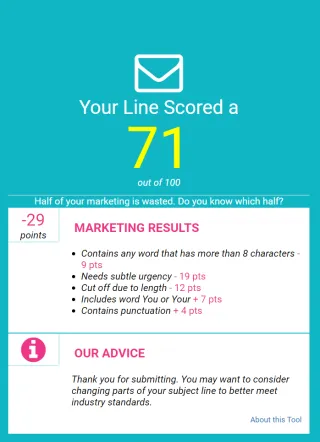
2) Use a Subject Line tester such as https://subjectline.com/ or http://emailsubjectlinegrader.com/ to test or grade your subject line and show you how likely it is to be considered Spam.
3) Set up your SPF, DKIM and DMARC.
SPF, DKIM and DMARC are simply a set of email authentication methods to prove to ISPs and mail services that senders are truly authorized to send email from a particular domain and, are a way of verifying your email sending server is sending emails through your domain. Google has a good article to c fall asleep to that explains how to set up these up.
SPF Article : https://support.google.com/a/answer/33786?hl=en#to-do
DKIM Article : https://support.google.com/a/answer/174124?hl=en
DMARC Article : https://support.google.com/a/answer/2466563?hl=en
Why do you recommend Google Workspace Accounts?
1) They are cheap! Starting $6 a month and you can send a lot of emails.
2) They are really easy to set up. Most users can set these up themselves in less than 30 mins.
3) Google Workspace is fully integrated with Popmix CRM and allows you to use a lot of other Google solutions like, Google Analytics, Google Ads, and Google Messages etc